Use agentproto from your phone
Pair your phone with a running agentproto serve daemon and get its
Control Center, the same session UI you'd open on the computer, as an
app-like page on your phone, live-streaming over an end-to-end encrypted
tunnel. No public tunnel, no port-forwarding, no account.
1. What you get
agentproto pair offer --qr prints a QR code. Scan it, confirm a fingerprint,
and your phone shows the pairing waiting for confirmation — the operator
on the computer runs agentproto pair confirm <code> (compare the short
code), and then the phone opens the daemon's Control Center: the live session
list, chat, and everything else the daemon serves, proxied straight from the
daemon over the pairing, not copied or re-hosted anywhere.
It's safe to route through a broker you don't control because the broker
never sees your traffic: pairing is end-to-end encrypted (pair/v2), so the
rendezvous only ever relays ciphertext, and each daemon gets its own
browser origin, <fingerprint>.agentproto.cloud, so one daemon's pairing
can never read another's. See concepts/pairing.md
for the full protocol and threat model.
2. Prerequisites
- A current agentproto on the computer running the daemon (pair/v2 and
the per-daemon pair page). Check the printed link itself rather than
whether
--qris merely recognized: it should look likehttps://<32-hex-chars>.agentproto.cloud/pair#…, one origin per daemon. If it instead printshttps://cli.agentproto.sh/pair#…, or the id/host label is only 16 hex characters, the daemon predates the per-daemon pair page: update agentproto on the computer, restart the daemon, and runpair offer --qragain. - Any phone browser in a secure context (Safari or Chrome over HTTPS,
which
agentproto.cloudalways is). Pairing needs service workers, so skip private/incognito tabs.
3. Pair in 4 steps
On the computer, with the daemon running:
agentproto pair offer --qrThis prints a QR for a phone link (https://<fingerprint>.agentproto.cloud/pair#…)
alongside the usual CLI offer, and shows the daemon's fingerprint in the
terminal.
On the phone, scan the QR with your camera. It opens the pair page, which runs the handshake and shows you the daemon's fingerprint to confirm:
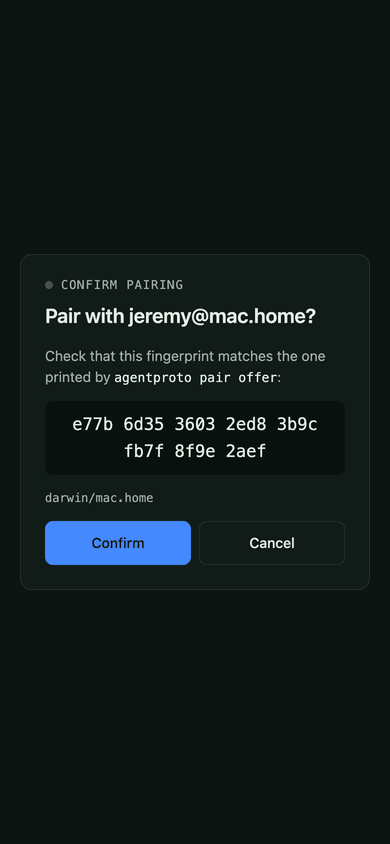
Check that the fingerprint on the phone matches the one printed in the terminal, then tap Confirm. That's the human check that defeats a swapped or malicious QR; the page refuses to skip it.
Back on the computer, the phone is now waiting for your confirmation —
it shows a short code and "waiting for confirmation". Compare that code with
agentproto pair pending, then promote the pairing:
agentproto pair pending            # list pending handshakes with their short codes
agentproto pair confirm <code>     # or: pair decline <code>
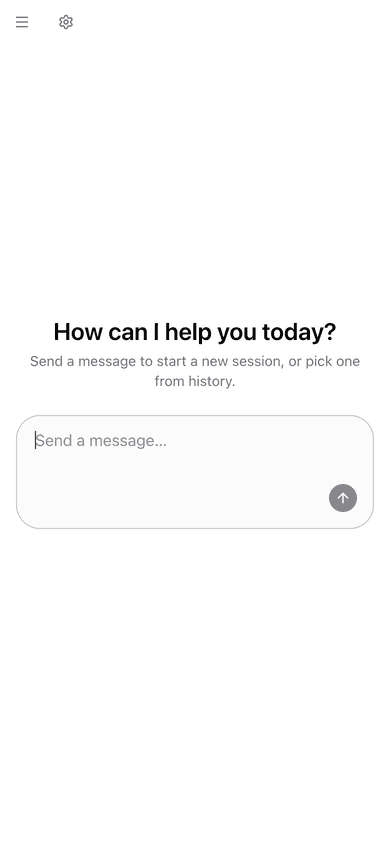
Until you confirm, the pairing drives nothing. Once confirmed, the Control Center opens on the phone, proxied from the daemon over the encrypted tunnel:
4. Using it
Add it to your home screen (Safari: Share → Add to Home Screen; Chrome: ⋮ → Add to Home screen) for a standalone, full-screen app rather than a browser tab. Opening it later reconnects straight to your daemon.
If the page shows "Connecting…", it's opening the tunnel through the rendezvous; this is normal right after a reconnect. If it shows the daemon as unreachable, either the daemon isn't running or the computer is asleep; there's nothing to do on the phone; it retries on its own and reconnects automatically once the daemon (and the computer) is back.
5. Unpair
From the computer:
agentproto pair ls               # see paired devices, by name/fingerprint
agentproto pair revoke <name>    # drop one; it can no longer reconnect
The phone doesn't just look offline, it gets told:
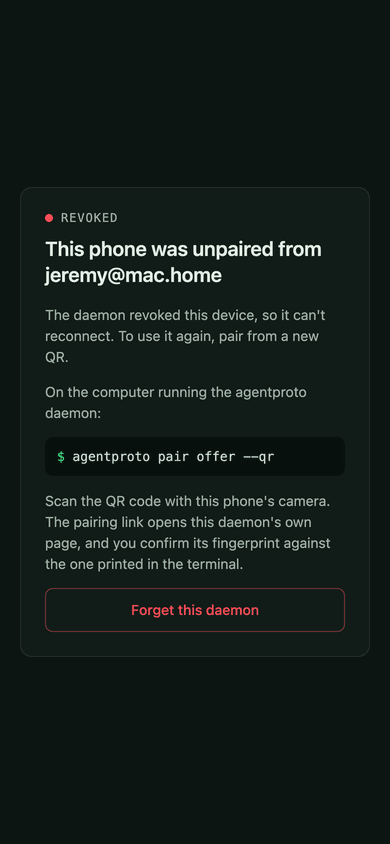
From the phone: open the pair page (/pair) and tap Forget next to
a daemon, or Forget this daemon on the revoked/outdated screen. This
only drops the credential stored on the phone; it doesn't touch the
daemon's side, so do both if you want it gone completely.
6. Several daemons
Each daemon has its own address, <fingerprint>.agentproto.cloud, and
its own separate credential, service worker, and storage on your phone.
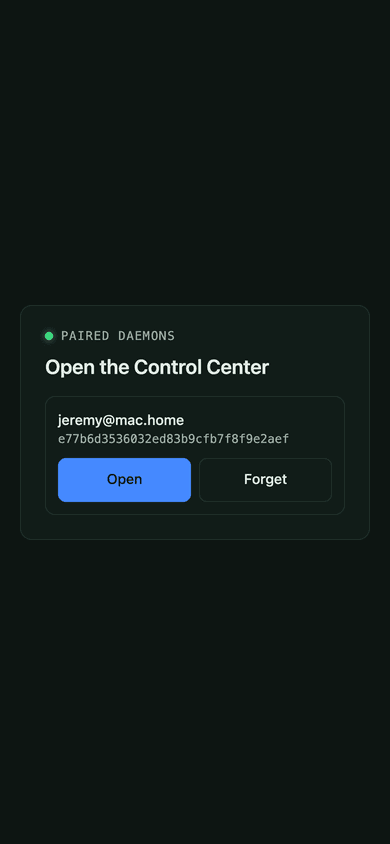
Opening one daemon's paired address lists only that daemon:
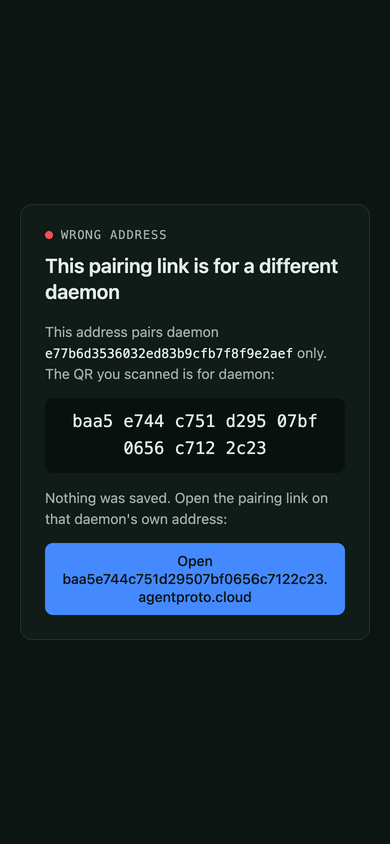
If you scan daemon B's QR while already on daemon A's page (or an old tab still points at A), you'll see "wrong address": nothing is paired, and the page links you to daemon B's own address instead:
7. Troubleshooting
- "Unpaired" / "outdated pairing": the daemon no longer accepts this
phone's pairing (revoked, or paired under a retired protocol version).
Re-pair from a fresh QR:
agentproto pair offer --qron the computer, scan again. - A 404 on the pairing link: check the link against
https://<32-hex-chars>.agentproto.cloud/pair#…(see Prerequisites). Ahttps://cli.agentproto.sh/pair#…link, or a 16-hex-character id/host label, means the daemon predates the per-daemon pair page: update agentproto on the computer, restart the daemon, and get a fresh QR. Otherwise the link likely got mistyped/truncated when copied; get a fresh QR rather than retyping the URL by hand. - Offline forever, never reconnects: check that the daemon process is
actually running (
agentproto serve) and that it can reachpairing.rendezvous(the hosted default iswss://rdv.agentproto.sh/v1); a daemon with no network path to the broker can't be found. - Corporate/hotel network blocks it: some networks block WebSocket
(
wss://) traffic outright. Try a phone hotspot, or self-host the broker somewhere reachable from both sides.
See also: concepts/pairing.md (protocol and threat model), verbs/pair.md (full command reference), and AIP-59 (the pairing spec) at agentproto.sh/docs/aip-59.
8. Self-hosting (short)
Both pieces the phone touches can be self-hosted:
- The pair page: point
pairing.pairPageinconfig.json(or--pair-pageper offer) at your own bundle (packages/pair-page), using a{fp}template in the hostname for one origin per daemon:"https://{fp}.pair.example.com/pair". - The rendezvous broker: run your own with
agentproto rendezvous serveand setpairing.rendezvousto it instead of the hosted default.
See concepts/pairing.md and verbs/rendezvous.md for the details.
No-admin install: agentproto on a locked-down Mac
A concrete walkthrough for the machine this guide assumes: a work-issued macOS laptop with no admin rights (no sudo, no Homebrew, no writing to /usr/local), on a corporate network that only allows…
Your first supervised run: one supervisor, ten workers
You have a job that splits into ten independent pieces, and you don't want to open ten terminals and babysit each one.